With the release of the latest Lightroom update, Adobe also introduced its long awaited mobile version, now available for the iPad and coming soon for the iPhone. An Android version is also in development.
From a professional point of view, the iPad has always been a tool for showcasing rather than editing photographs. The natural identity of the device makes it great for portfolio presentations but, when it comes to photo editing, the possibilities are more limited. There are many apps offering good tools for photo editing but none of them are capable of handling RAW the right way.
While the iPad will certainly not replace a proper computer for daily workflows, it can be a useful tool in certain situations such as transferring photos and uploading them somewhere right away.
I used it a couple of times for press conferences where it was necessary to dispatch the photos immediately. My favourite app, so far, has been Photogene. It has many sharing options, for example, moving files from Flickr accounts to FTP servers. I had to make sure to shoot RAW+JPG because the iPad will otherwise let you use the JPG nested inside the RAW file only.
Is Lightroom mobile the answer? Not quite.
Desktop and mobile synchronisation: an interesting tool
In order to use the Lightroom mobile app, you will need a creative cloud or Photoshop program account, meaning the app isn’t free and requires a monthly subscription. Having a CC membership already, I could start using the app right away. If you don’t have an Adobe subscription, you can get a 30 day trial by downloading the Lightroom Trial version. Unfortunately, it won’t work if you have a perpetual license for the desktop application.
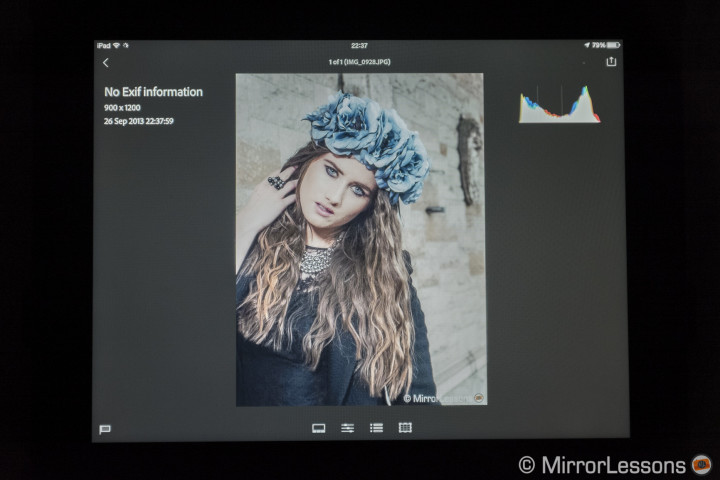
There are two ways to use Lightroom mobile. The first option is to sync the photos you already have on the desktop application. For that they need to be in the Lightroom collection, where you will find a little sync logo next to each collection (make sure you have the latest Lightroom version 5.4). Once checked, the photos will start to sync and appear in the mobile application. Lightroom doesn’t transfer the original RAW files but rather creates a proxy copy (Adobe calls it smart preview) that retains all the required information. This means that if you edit the photo on the mobile app, the changes will also appear automatically on the desktop version and therefore on the original file. So the app can be a good tool for performing a basic edit of your photograph remotely with the iPad. Is it useful? Well, personally, I don’t see a concrete use. If you upload your pictures on your computer and need to edit them right away, you will find the whole process faster using the computer rather than the tablet.
I think this function is more interesting for keeping a copy of all your collections on the device without having the need to import them manually, so that you can access them at anytime. There is a slideshow option for each collection synced on the iPad which works well for showcasing your work (make sure to enable the offline option or you will always need an internet connection). Unfortunately, you cannot sync more than one Lightroom catalogue. For example, I have a Lightroom Catalogue for the photos I use within MirrorLessons and another catalogue for my photography work. I have to choose which one to sync knowing that, if I decide later to switch to another catalogue, the precedent synchronisation will be deleted. It works better for those who handle all their pictures in one catalogue only.
I hope that Adobe can enable more multiple catalogue syncs in future updates, otherwise it will be necessary for me to reorganise my catalogue and create one especially for the synchronisation, so I can transfer the pictures that I want to always keep with me. Or, possibly, I will need to create a catalogue with all the edited JPG versions.
A little disappointed: Lightroom mobile isn’t a native RAW developer for the iPad
The second way to use it is of more interest to me: importing my RAW files directly from my SD card and working on them locally.
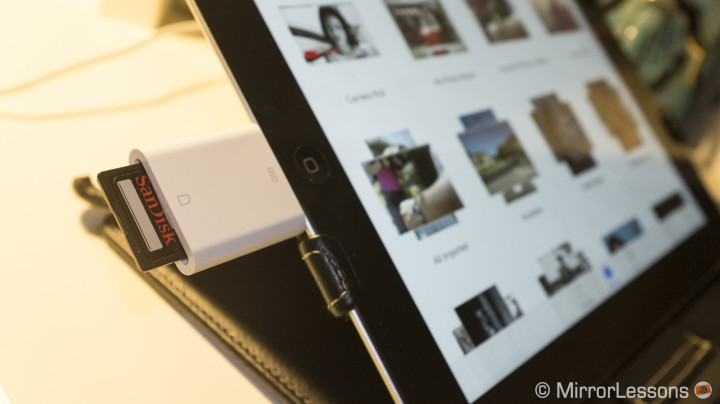
I plugged my SD card, containing a series of photos I took earlier in the evening, and imported them using the default Photo app on the iPad (you cannot import them directly into Lightroom mobile). Then, opening LR, I imported the pictures from the iPad camera roll.
I noticed that the app was showing the picture’s filename with the “.jpg” extension. There isn’t any option to select JPG or RAW so I tried to import another SD card with only RAW files on it. Once on the device, Lightroom couldn’t see the pictures in the camera roll. So, it seems that from within the iPad, Lightroom will only import JPG and not RAW. iOS has always been cautious concerning RAW files and it seems that their reluctance continues even with Adobe Lightroom: the app can access JPGs only. Where is the advantage really? It makes the app look like any other photo editing app in the App Store.
Hopes for further development and improvement
I consider this first version a sort of beta test. There are interesting features about the app and it is well designed, with different shortcut options achieved using your fingers.
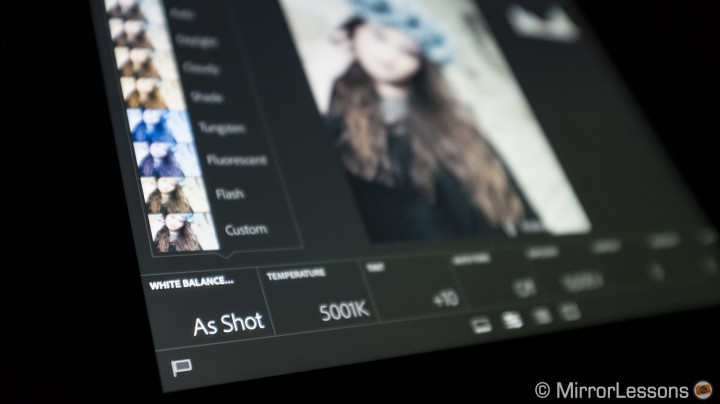
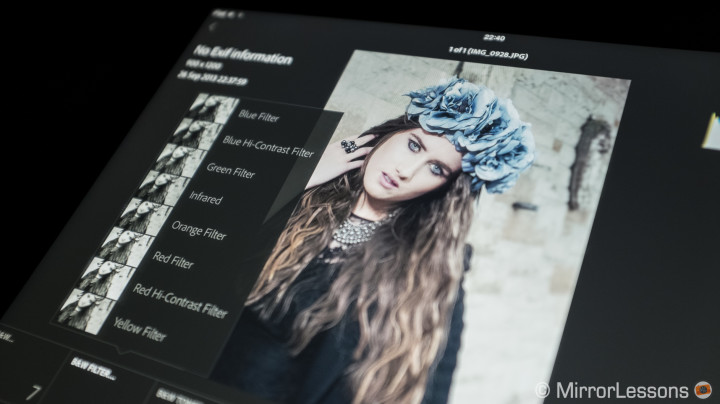
From a photo editing point of view, it offers the basic adjustments you can find in the desktop version. It lacks camera profiles, presets, local adjustments and more advanced correction tools such as curves and HSL.
On my 3rd generation iPad I find it a little bit slow but it seems stable. I imagine that on the latest iPad Air the app is able to work much faster.
Concerning RAW files, I hope that Adobe can address the current limitation and allow true RAW development of the files that are stored locally on the iPad. But I’m also concerned that this is an iOS limitation more than anything else. In my opinion, the latest generation iPad should have enough capability to develop RAW files.